Materia Medica Browser
Materia Medica Browser allows to display materia medicas and other texts, search within them, edit their contents and also creating new materia medicas.

Materia Medica Browser can be accessed from the main toolbar. By clicking the Materia Medica Browser (materia medicas) button, only the materia medicas (texts containing information about the remedies) are displayed and by clicking the Materia Medica Browser (lectures and additional texts) button the lectures and other texts are displayed.
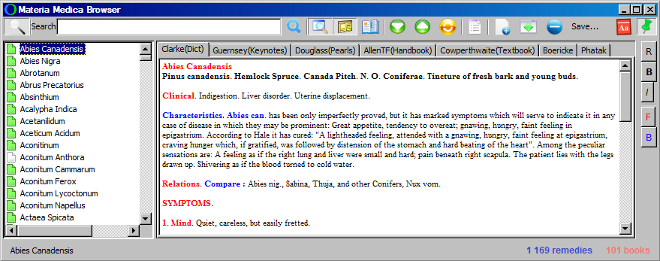
Displaying remedy texts
To display the materia medica records for a specific remedy, select the remedy from the remedy list on the lft side of the window. The right side will then contain all the materia medicas under the respective tabs according to the shortcut name of the materia medica. To display the full name of the materia medica, hover the mouse cursor over the tab.
Each remedy has in the remedy list either the white  icon or the green
  icon. These icons display whether the currently viewed materia medica (accessed by clicking the tab with the materia medica shortcut on the right side) contains (green icon) or does not contain (white icon) the specified remedy. In this way, it is possible to see the contents of each materia medica simply by clicking the materia medica tab.
Clicking the  button allows the homeopath to select which authors or even materia medicas to view and to filter-out all the other texts. To reset the list and to view all the texts, click the button again.
Search
To perform the search, enter the keywords into the search edit and press the ENTER key. All the materia medica records will be displayed that contain the entered words either in the same sentence, or in the same paragraph.
If the  button is selected, only the remedies that were returned in the search are displayed, while the highlighted remedies contain the search words in the same sentence and the rest of the remedies contain the words only in the same paragraph. If the button is not selected, all remedies will be displayed and the remedies containing the search words in the same sentence will be highlighted in red, remedies containing the search words in the same paragraph only will be highlighted in blue color and the remedies that do not contain the search results will be highlighted in gray color.
The  button allows to search in all the remedies, or only in one selected remedy.
When the search was performed, the 
 buttons move in the text of the remedy to the NEXT or the PREVIOUS found word.
The  button clears the search results and displays all the remedies of the materia medica again.
Adding new texts / Editing texts
OpenRep SYNOPSIS allows to create your own materia medicas, edit materia medicas or import them from the text files
To add a new text into the materia medica, click the  button.
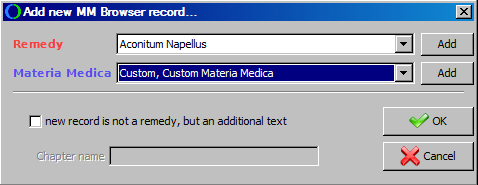
A dialog will open, in which the homeopath must select the remedy name (if the remedy does not exist, it can be created by clicking the add button) and the materia medica (to create a new materia medica, click the add button.
If the added text does not belong to a remedy, the new record is not a remedy, but an additional text must be selected and the Chapter name must be entered. This record will then be accessible from the Materia Medica Browser (lectures and additional texts) main window button.
The  button allows importing the texts either from a text file or the .rtf file. After selecting the file, it is necessary once again to select the remedy name and the materia medica into which it should be imported and the text will be added.
The  button deletes the currently selected materia medica from the currently selected remedy. Please note that this operation is irreversible and the text will be also deleted from the disk.

After the adding of the text, the text can be edited simply by typing into the text directly. The fonts can be adjusted by selecting the text in the materia medica and clicking the font buttons on the right side.
The buttons allow to:
- R set font as unformatted (regular)
- B set font as bold
- I set font as italic
- F set the foreground color
- B set the background color
After finishing editing, it is necessary to click the Save... button to save the changes, otherwise the changes will not be saved.
When exiting the Materia Medica Browser after editing the texts, a dialog will popup asking You have modified the texts in Materia Medicas. Do you want to re-index them to be able to search them. It is necessary to click Yes, because without re-indexing the data, the changes will not be reflected in the search and new texts will not be found. Please note, that re-indexing takes some time, as indicated by the progress bar.
Dictionary

After clicking the Dictionary button, the dictionary dialog will appear. When the dialog is visible, after clicking on any word in the text, the definition of the word will be displayed in the dictionary dialog. In order to perform the search in the dictionary, simply put the word into the search bar and press the ENTER key.